Teams
Teams are how Flowstate groups people for cost, budgets and effort. Each team has a manager, who is asked to fill in the team’s budget and submit its effort each week.
Teams are your finance structure: parent teams, the teams inside them, and the people on each. Budgets, the forecast and CapEx reporting add cost up by team. Teams aren’t the same as functional groups, which describe how delivery is organised, and they aren’t projects, which are the work people’s time goes to. You can put a team on a project.
You need access to add and change teams — ask your Flowstate admin.
Add a team
Before you start, the team’s manager needs a Flowstate account. Invite your managers first.
- Go to Resourcing → People and teams → Teams and select Add Team.
- Enter the Team Name.
- Choose a Team Type: Squad, Tribe, Chapter, Guild, Department, Division or Team. It starts as Squad.
- Choose a Parent Team, or leave it as None for a top-level team.
- Choose the Manager.
- Optionally add a Description.
- Select Create.
The team’s side panel opens, ready for you to add its members.
Teams can sit inside other teams as deep as you need: a department, the groups inside it, and the squads inside those.
Find a team on the Teams tab
Resourcing → People and teams → Teams lists your teams. It opens grouped by Parent Team and sorted by Name.
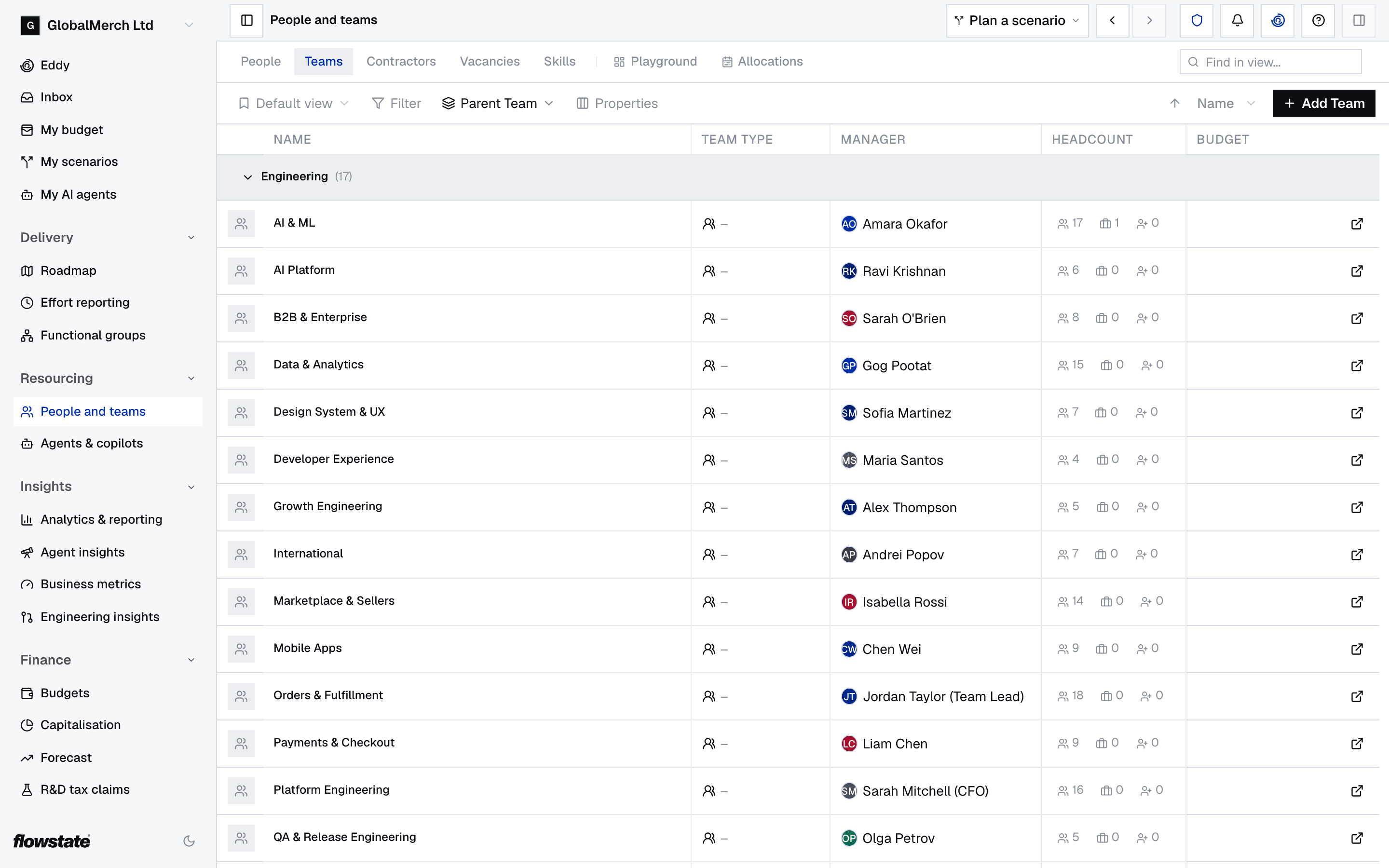
- Search by typing a team’s name in Find in view….
- Sort by Name, Headcount or Manager Name.
- Group by Parent Team, Team Type or Changed in Plan, or choose None.
- Filter by Manager, Parent Team, Archived or your custom attributes, where Not set finds the teams an attribute is empty for.
- Select Reset to go back to the standard view.
Grouping by Parent Team lists each team under its direct parent only, one level deep. A squad inside a tribe inside a department shows under the tribe, and the tribe shows under the department. Teams with no parent are under No parent, at the end. Changed in Plan shows which teams have changed in the scenario you’re in.
| Column | Shows |
|---|---|
| Name | The team. A team being archived shows Archiving and the date |
| Team Type | The kind of team. Select it to change it |
| Manager | The team’s manager. Select it to change it |
| Headcount | How many employees, contractors and vacancies are on the team |
| Budget | How the team’s forecast compares with its budget, when it has one |
Your custom attributes can be shown as columns too.
Teams are separate from functional groups, which describe your functional structure and positions.
Change a team’s details
- Select the team to open its side panel. It opens on Overview.
- Under Team details, select the value you want to change:
- Name: type the new name and press Enter. Press Esc to cancel.
- Description: type the description and press Enter. Press Shift+Enter for a new line.
- Type, Manager or Parent team: choose from the list.
Each change saves straight away.
Overview has three sections:
| Section | What’s in it |
|---|---|
| Team details | Name, Type, Manager, Parent team, Current headcount (employees and contractors on the team today), Current FTE, Description, and External ID when an import or integration has set one. Headcount, FTE and External ID can’t be changed here |
| Budget | Shown when the team has a budget for the current financial year. It shows the year’s cost and FTE, with a chip: On budget, the amount over budget in red, or the amount under budget in green. Hover the chip to see the budget, the current figure and the difference. See Budgets |
| Custom attributes | Extra fields your organisation adds. Select a value to fill it in. Dates and lists open a picker with Apply and Clear. Your admin sets them up under Settings → Resourcing → Custom Attributes |
Change a team’s manager
- On the Teams tab, right-click the team.
- Select Change manager.
- Choose the new manager.
You can also select the team’s Manager cell on the Teams tab, or Manager on the team’s side panel.
The manager is who Flowstate gives the team’s work to:
- Budgets. When finance sends out a budget request, each team with a manager gets a budget proposal for that manager to fill in. If a request is already open, the team’s budget work moves to the new manager. See Budgets.
- Effort. The manager is asked to review and submit the team’s effort each week. See Effort reporting.
A team’s manager is a Flowstate user. It’s different from a person’s Line manager, which is the employee they report to.
Change a team’s type
- On the Teams tab, select the team’s Team Type cell.
- Choose the type: Squad, Tribe, Chapter, Guild, Department, Division or Team.
It saves straight away. You can also change Type on the team’s side panel.
When the Teams tab is grouped by Team Type, you can drag a team’s row onto another type’s group instead.
Move a team under another team
- On the Teams tab, right-click the team.
- Select Change parent team.
- Choose the new parent team, or None to make it a top-level team.
It saves as soon as you choose. You can also change Parent team on the team’s side panel.
When the Teams tab is grouped by Parent Team, you can drag a team’s row onto the group of its new parent. The move saves as soon as you drop it. If the new parent has no teams inside it yet, or you want a top-level team, use Change parent team instead.
Add someone to a team
Add an employee or contractor
- Select the team to open its side panel.
- Select Members.
- Under People or Contractors, select Add.
- Search for the person and choose them.
- In Change Team, choose Move entirely to the target team or Split time with the target team.
- Set the Date of change: the day they join this team.
- If you’re splitting their time, enter the Full-time equivalent (FTE) they’ll spend on this team, above 0 and below 1.
- Select Confirm Movement.
Their time on the team starts on the date of change and has no end date. To end it later, see End or remove someone’s time on a team. Add contractor lists individual contractors, not contracting companies.
Add a vacancy
- On the team’s side panel, select Members.
- Under Vacancies, select Add.
- In Add vacancy allocation, choose the Vacancy.
- Check the FTE (Full-time equivalent). It starts at 1.0.
- Set the Start Date and, if known, the End Date.
- Select Add Vacancy.
A person’s time on a team is a share from 0 to 1 FTE, so someone split evenly between two teams is on each at 0.5. A team’s cost is the cost of the time on it, and time that isn’t on any team shows under No team in the forecast.
End or remove someone’s time on a team
End today ends the allocation today and keeps the time they’ve already spent on the team. Remove deletes the allocation, as if it never existed. Neither asks you to confirm.
Employees
An employee’s time on a team is changed on their own record.
- On the team’s Members tab, select the person to open their side panel.
- Select Schedule.
- Under Teams, hover the team’s row.
- Select the bin, then End today or Remove allocation. To change their FTE or dates instead, select the pencil.
See Change or end an allocation. To move someone to a different team, see Move someone to another team.
Contractors and vacancies
- On the team’s Members tab, hover the contractor’s or vacancy’s row.
- To change their FTE or dates, select the pencil (Edit). In Edit allocation, make the change and select Save Changes.
- To end their time, select the bin (Remove), then End today or Remove.
See historic shows people whose time on the team has ended. Show filled includes filled vacancies, which are hidden until you turn it on.
Put a team on a project
- Select the team to open its side panel.
- Select Allocations.
- Under Projects, select Add.
- In Add project allocation, choose the Project.
- Enter the team’s FTE on the project, the Start Date and, if known, the End Date. Or tick Ownership only to link the team to the project without counting its time.
- Select Add Project.
See Allocations for how project time is counted.
Change or end a team’s project allocation
- Select the team to open its side panel, then select Allocations.
- Hover the project’s row.
- To change it, select the pencil (Edit). In Edit allocation, change the FTE, dates or Ownership only, then select Save Changes.
- To end it, select the bin, then End today to end it today, or Remove to delete it. Neither asks you to confirm.
See historic shows project allocations that have ended.
Archive a team
Teams aren’t deleted. When a team closes, archive it from the day it closes.
- Archive any teams inside it first.
- On the Teams tab, right-click the team and select Archive….
- Pick the Archive date: the first day the team no longer exists.
- Check the date its members’ allocations end, which is the day before, and how many people are on it.
- Select Archive team.
From the archive date, the team can’t be picked, everyone’s time on it has ended, and it drops out of the teams list. Nothing is deleted: the team stays in effort reporting for the weeks it existed.
If you pick a future date, the team works as normal until then and shows Archiving with the date. To undo, right-click it and select Cancel archive.
To see archived teams, set the Archived filter to Show archived teams only.
In a scenario, archiving a team only changes the scenario until it’s merged.
See a team’s history and comments
- Changes lists every change to the team, with who made it and when. Changes Flowstate made itself show System. Select Load more to go further back.
- Comments, at the right of the side panel’s tab bar, holds notes from your team. Type in Add a comment… and select Post, or press ⌘+Enter (Ctrl+Enter on Windows).
If something’s not right
A team has no budget proposal. It had no manager when the budget request went out. See Budgets.
Nobody is asked to submit a team’s effort. Give the team a manager.
The person you want as manager isn’t in the list. Managers must be Flowstate users. Invite them first.
The parent team you want isn’t in the Add Team list. Clear the filters and search on the Teams tab, then try again.
There’s no End today or Remove on an employee’s row. An employee’s time on a team is changed on their own record. See Employees.
The dialog says “Archive these sub-teams first”. Archive the teams inside it, then try again.
A team’s cost looks too low. Check its members’ allocations on Members, and whether people’s time is under No team in the forecast.
Someone’s work doesn’t count towards any team. Flowstate saw their activity, but they aren’t on a team, so their effort and cost are left out of every team’s totals, including CapEx and R&D. Add them to a team. See Add someone who’s missing from a team’s week.
For your technical team
Teams and team-to-project allocations can be read and written through the REST API: Teams and Assignments. Spreadsheet columns for importing teams are in People and teams.