Contractors
A contractor is someone you pay a rate rather than a salary, such as a freelancer, a consultant or an agency worker. You put them on teams and projects like employees, and Flowstate costs them from their rate. Contractors don’t carry overhead or get bonuses.
You need access to add and change contractors — ask your Flowstate admin. Seeing and changing rates needs access to pay.
Add a contractor
- Go to Resourcing → People and teams → Contractors and select Contractor.
- Choose Add a person.
- Enter the Name and Email.
- Choose their Team and, if they work through a firm, their Company.
- Optionally choose a Manager: the employee who manages the engagement.
- Choose a Job role, Location and Work type.
- Choose the Rate type and enter the Rate.
- Set the Start date and, for a fixed contract, the End date. Leave the end date blank if the engagement is ongoing.
- Select Create.
Adding an email lets Flowstate match the contractor’s work in your project tool and AI tools.
| Rate type | Means |
|---|---|
| Hourly | A rate per hour |
| Daily | A rate per day |
| Monthly | A rate per month |
| Annually | A rate per year |
Flowstate turns every rate into a day rate. See The day rate.
Add a contracting company
To see which contractors come from which firm, add the firm as a company.
- On the Contractors tab, select Contractor.
- Choose Add a company.
- Enter the Name.
- Select Create.
Then choose the company as the Company when you add each of its contractors. Companies aren’t on teams, so when you group the Contractors tab by Team, they’re listed under No team.
Find contractors
Go to Resourcing → People and teams → Contractors.
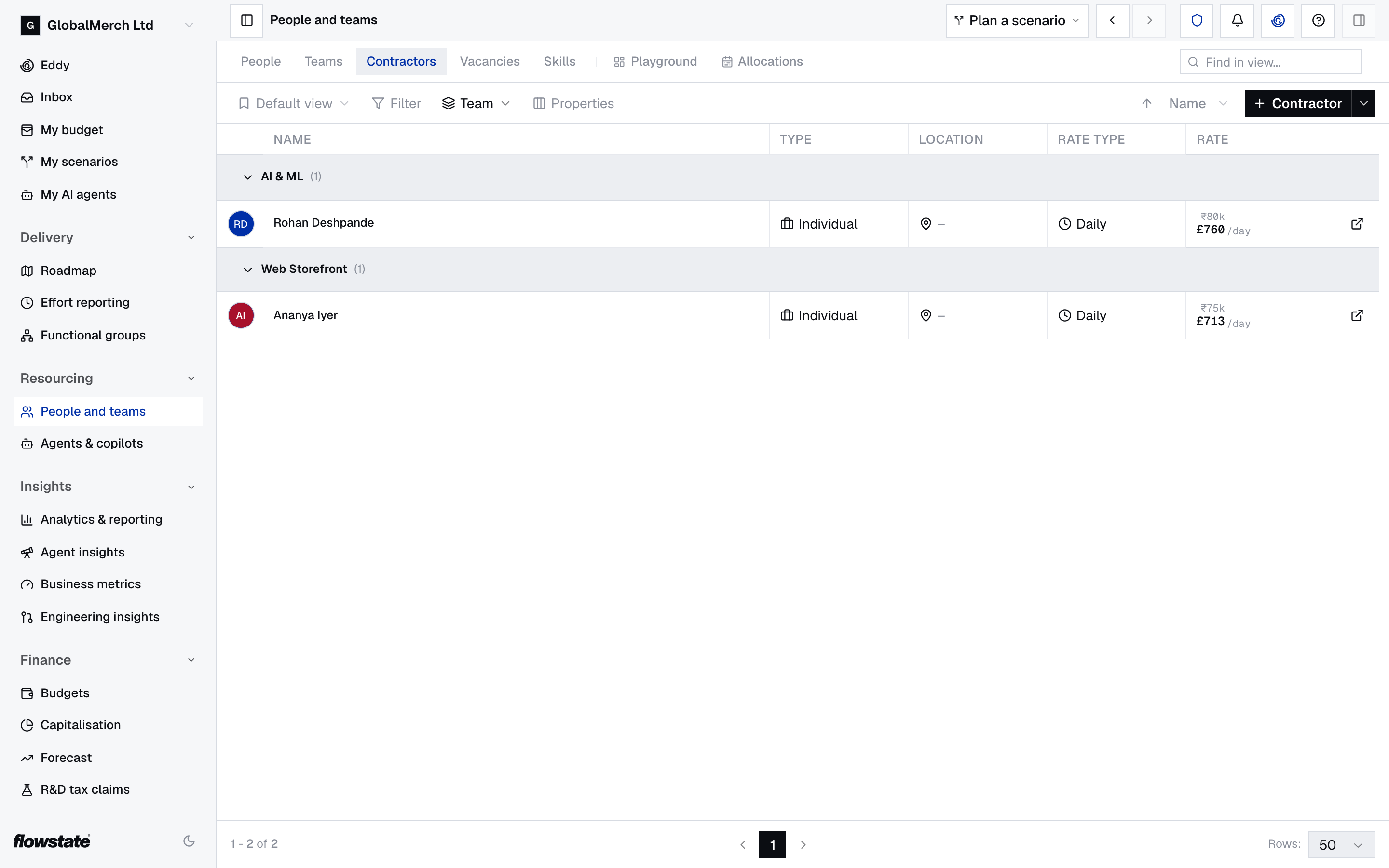
- Each row shows the contractor’s Type, Location, Rate Type and Rate. You only see Rate Type and Rate if you have access to pay. Use Properties to show or hide columns, including a column for each custom attribute.
- Contractors are grouped by Team. Companies, and contractors who aren’t on a team today, are under No team. Use Group by to choose None, Type or Rate Type instead.
- Sort by Name, Type or Rate.
- Filter by Location, Role, Team, Line Manager, Status or Annual rate, or by your custom attributes, where Not set finds the contractors an attribute is empty for. For Annual rate, choose a comparison such as less than, enter an amount in your reporting currency, and select Apply.
- Search with Find in view….
Grouping by rate type, sorting by rate and filtering by annual rate need access to pay.
Contractors whose contract has ended are hidden. To see them, choose Filter → Status → Include off-boarded.
Inside a scenario, you can also group by Changed in Plan. Contractors are then listed under Added in Plan, Modified in Plan, Deleted in Plan, Related Changes and Unchanged.
Change a contractor from the list
Move a contractor to another team
- On the Contractors tab, right-click the contractor and select Change team.
- In Change team, choose the new Team.
- In Change Team, choose Move entirely to the target team or Split time with the target team.
- Set the Date of change. If you’re splitting their time, enter the Full-time equivalent (FTE) on the new team.
- Select Confirm Movement.
When the tab is grouped by Team, you can also drag a contractor’s row into another team’s group. This moves them from today.
Change whether a contractor is an individual or a company
Select the Type cell and choose Individual or Company. You can also right-click the contractor and use Change type, or drag the row into the other group when the tab is grouped by Type.
Change the rate type
To correct the rate type of the current rate, select the Rate Type cell and choose Hourly, Daily, Monthly or Annually. You can also right-click the contractor and use Change rate type.
This changes the current rate in place, with no effective date, and keeps the amount. A day rate switched to Monthly becomes the same figure per month, so check the Rate afterwards. If the contractor’s rate is changing from a date, change their rate instead.
Change a contractor’s rate
Rates are dated. A change applies from its effective date, and earlier months keep the old rate.
- Open the contractor’s side panel and select Compensation.
- Select Add change.
- In Adjust Rate, enter the Rate and choose the Rate Type.
- Set the Effective Date.
- Select Save Rate.
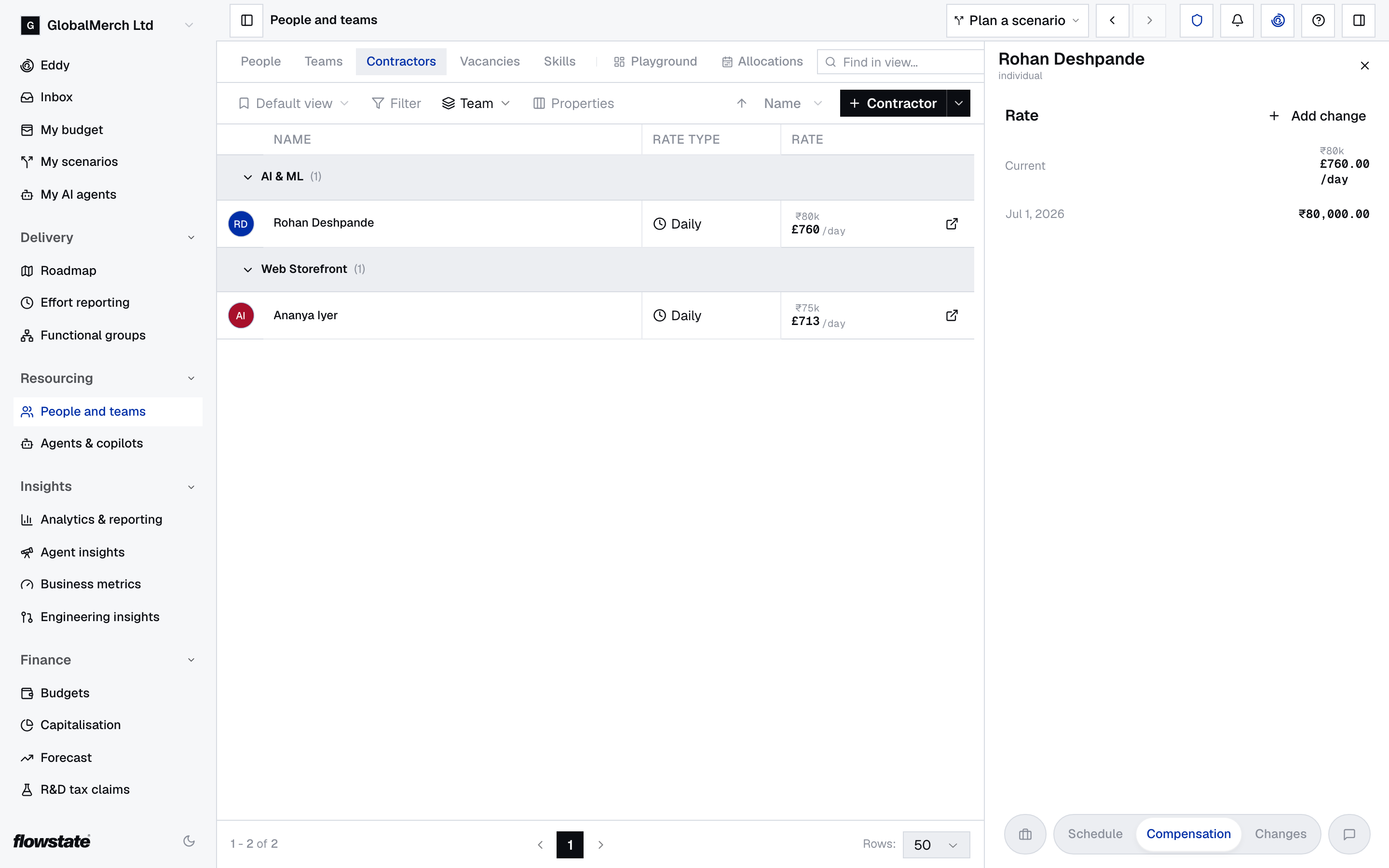
A future change shows as scheduled until its date. You can also right-click the contractor on the Contractors tab and select Adjust rate, or select their Rate.
To change many rates at once, filter the Contractors tab, open the menu next to Contractor and select Adjust rate. It works like giving a group of people a pay rise.
Edit or delete a rate change
- Open the contractor’s side panel and select Compensation.
- For a scheduled change, select Edit or Delete under it. For a past rate, hover over it and select the pencil icon or the bin icon.
- To edit, change the details in Edit Rate Adjustment and select Update.
- To delete, confirm Delete this rate adjustment?.
Plan a contractor’s time on teams and projects
The Schedule tab on a contractor’s side panel shows which teams and projects they’re on. Contractors have no leave. See Contractors and public holidays.
If your organisation uses functional groups, the positions the contractor holds in them are listed under Functional groups, between Teams and Projects: the group, the position, their share of it as an FTE, and the dates. Positions they’re due to take up are included; ended ones are behind See historic. Select a row to open the position. To change a position or who holds it, see Positions.
Put a contractor on a team
- Open the contractor’s side panel and select Schedule.
- Under Teams, select Add.
- In Add team allocation, choose the team.
- In Change Team, choose Move entirely to the target team or Split time with the target team, and set the Date of change.
- If you’re splitting their time, enter the Full-time equivalent (FTE) on the new team.
- Select Confirm Movement.
From that date, their time on their other teams is ended, or reduced to make room.
Put a contractor on a project
- Open the contractor’s side panel and select Schedule.
- Under Projects, select Add.
- In Add project allocation, choose the project.
- In Assign to Project, enter the Full-time equivalent (FTE), the Start Date and, optionally, the End Date.
- Select Confirm Allocation.
Change or end an allocation
Hover over the allocation’s row on the Schedule tab.
- To change its FTE or dates, select the pencil icon. In Edit allocation, make your changes and select Save Changes.
- To end it today, select the bin icon, then End today.
- To delete it as if it never happened, select the bin icon, then Remove allocation.
Ended allocations are hidden. Select See historic to show them.
Change a contract’s dates
Change the start date
- Open the contractor’s side panel.
- On Overview, select Contract dates.
- Change the Start date.
- Select Apply.
End a contract
- Open the contractor’s side panel.
- On Overview, select Contract dates.
- Set the End date to their last day.
- Select Apply.
- Flowstate asks Off-board with their name. It will end all their allocations on the same date.
- Select Confirm.
Ended contractors are hidden from the Contractors tab; turn on Include off-boarded in the filters to see them.
Convert a contractor to an employee
When a contractor joins your payroll, convert them instead of adding a new employee. Their allocations carry over, and the forecast doesn’t count them twice.
- Open the contractor’s side panel.
- On Overview, select Convert to employee.
- Set the Employee start date. The contract ends the day before.
- Optionally enter an Annual salary. If you leave it blank, Flowstate uses the contractor’s rate over a year.
- Select Convert.
The two records are linked, and each side panel shows the other under Linked record.
If a contractor record and an employee record for the same person cover the same dates, the panel warns Overlapping dates, because the person may be counted twice. Select End contractor on to end the contract on the suggested date.
Delete a contractor
Delete a contractor only if they were added by mistake. If they worked for you, end their contract instead, so they stay in past forecasts.
- On the Contractors tab, right-click the contractor and select Delete.
- In Delete contractor?, type their name to confirm.
- Select Delete.
Deleting permanently removes the contractor and all their data. It can’t be undone.
Choose how contractors are costed
This is one setting for your whole organisation, usually chosen once by finance. You need access to finance settings — ask your Flowstate admin.
- Go to Settings → Finance → Frameworks & Fiscal Year.
- Find Contractor Cost Reporting.
- Choose a Reporting method.
- Save.
| Reporting method | How each month is costed | Choose it when |
|---|---|---|
| Annualised rate ÷ 12 (recommended) | Every full month costs the same, like a salary. This is the default | You want contractor cost to be steady and comparable with employees |
| Daily rate × working days | By the weekdays the contractor works that month | You want the forecast to follow day-rate invoices, and accept that months with more weekdays cost more |
The setting changes how the forecast costs contractors. See How costs are calculated.
What’s on a contractor’s record
| Tab | What’s on it |
|---|---|
| Overview | Contractor details, Linked record, Convert to employee, Custom attributes and Skills |
| Schedule | Team and project allocations |
| Compensation | The current rate, any scheduled change and past rates |
| Changes | Every change to the record |
| Comments | Notes from your team, opened with the speech-bubble button |
Under Contractor details, select a value to change it:
| Field | What it’s for |
|---|---|
| Name | The contractor’s or company’s name |
| Email address | Matching the contractor to your project tool and AI tools |
| Type | Individual or Company |
| Role | Their job role, for filtering, grouping and analytics |
| Resource type | Their work type |
| Location | Where they work. It sets which public holidays apply |
| Current team | The team they’re on today. You can’t change it here: use the Schedule tab or move them from the list |
| Line manager | The employee who manages the engagement |
| Current rate | Shown if you have access to pay |
| Contract dates | When the contract started and, if it’s ending, the last day |
| External ID | Your system’s ID for them, filled in by an import or integration |
Fill in custom attributes
Custom attributes are extra fields your organisation adds. Your admin sets them up under Settings → Resourcing → Custom Attributes.
- On Overview, under Custom attributes, select the value next to the attribute. An empty one shows Not set.
- Enter or choose the new value.
- If Apply is shown, select it.
Add or remove skills
- On Overview, under Skills, select Add Skill.
- Search in Search or create skill… and select the skill.
- If it isn’t in the list, select Create with the skill’s name. This adds the skill to your organisation’s list and to the contractor.
To remove a skill, select the cross on it. See Skills.
Comment on a contractor
- Open the contractor’s side panel and select the speech-bubble button to open Comments.
- Type your comment in Add a comment…. To mention someone, type @ and choose them.
- Select Post.
People you mention see it in their Inbox.
If something’s not right
A contractor costs nothing. They have no rate. Add one on their Compensation tab.
You can’t see rates, or the Rate Type and Rate columns. You don’t have access to pay. Inside a scenario or a team budget, anyone who can edit it can also see rates. Otherwise, ask your Flowstate admin.
A contractor’s monthly cost goes up and down. Your organisation uses Daily rate × working days, so months with more weekdays cost more.
A contractor’s cost jumped after you changed the rate type. Changing the rate type keeps the amount, so a day rate became the same figure per month, or the other way round. Correct the Rate on their Compensation tab.
Someone is costed twice. They have an employee record for the same dates. Open Linked record and select End contractor on.
A contractor is under No team. They’re not on a team today. Put them on one from their Schedule tab.
A contractor is missing from next year’s forecast. Their contract has an end date. Only set one for a fixed contract or a known last day.
You set a contract end date by mistake. You can change it to another date, but you can’t remove it on screen yet. See End a contract. If you move the end date later, their allocations still end on the old date, so change their end dates on the Schedule tab.
There’s no Convert to employee button. You need access to add employees. Ask your Flowstate admin.
For your technical team
- Contractors, rate changes and allocations can be read and written through the REST API: Contractors and Assignments.
- To remove a contract’s end date, update the contractor through the API with
endDateset tonull. Leaving the field out keeps the existing end date. - Spreadsheet columns for importing contractors are in People and teams.