Employees
An employee is someone on your payroll. Their record in Flowstate holds what they’re paid, which team they’re in and what they work on, so Flowstate can forecast what they cost. Flowstate isn’t your HR or payroll system.
You need access to add and change people — ask your Flowstate admin. Who can see and change pay depends on your role.
Loading your people for the first time, for example from a spreadsheet, is covered in People and teams.
Add an employee
Before you start, your locations, work types and job roles need to be set up. See Organisation basics.
- Go to Resourcing → People and teams → People and select Add.
- In Add person, enter the First name, Last name and Email.
- Choose a Job role.
- Choose a Location and a Work type.
- Choose the Team they’re joining.
- Optionally choose their Manager: the employee they report to.
- Enter their Salary.
- Set the Start date. For a fixed-term employee, also set an End date.
- Select Create.
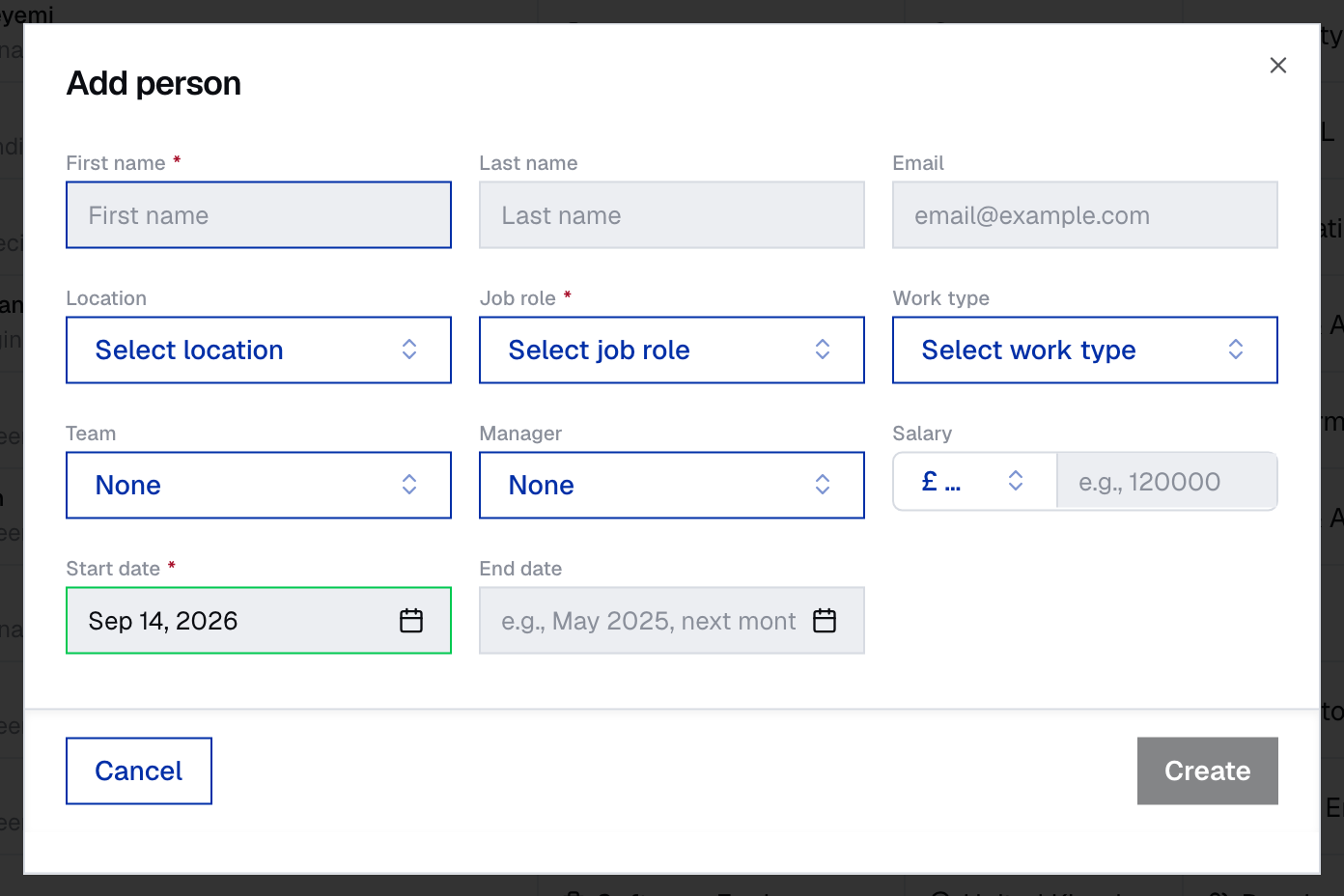
The person appears on the People tab, and the forecast includes them from their start date.
Find people on the People tab
Go to Resourcing → People and teams → People.
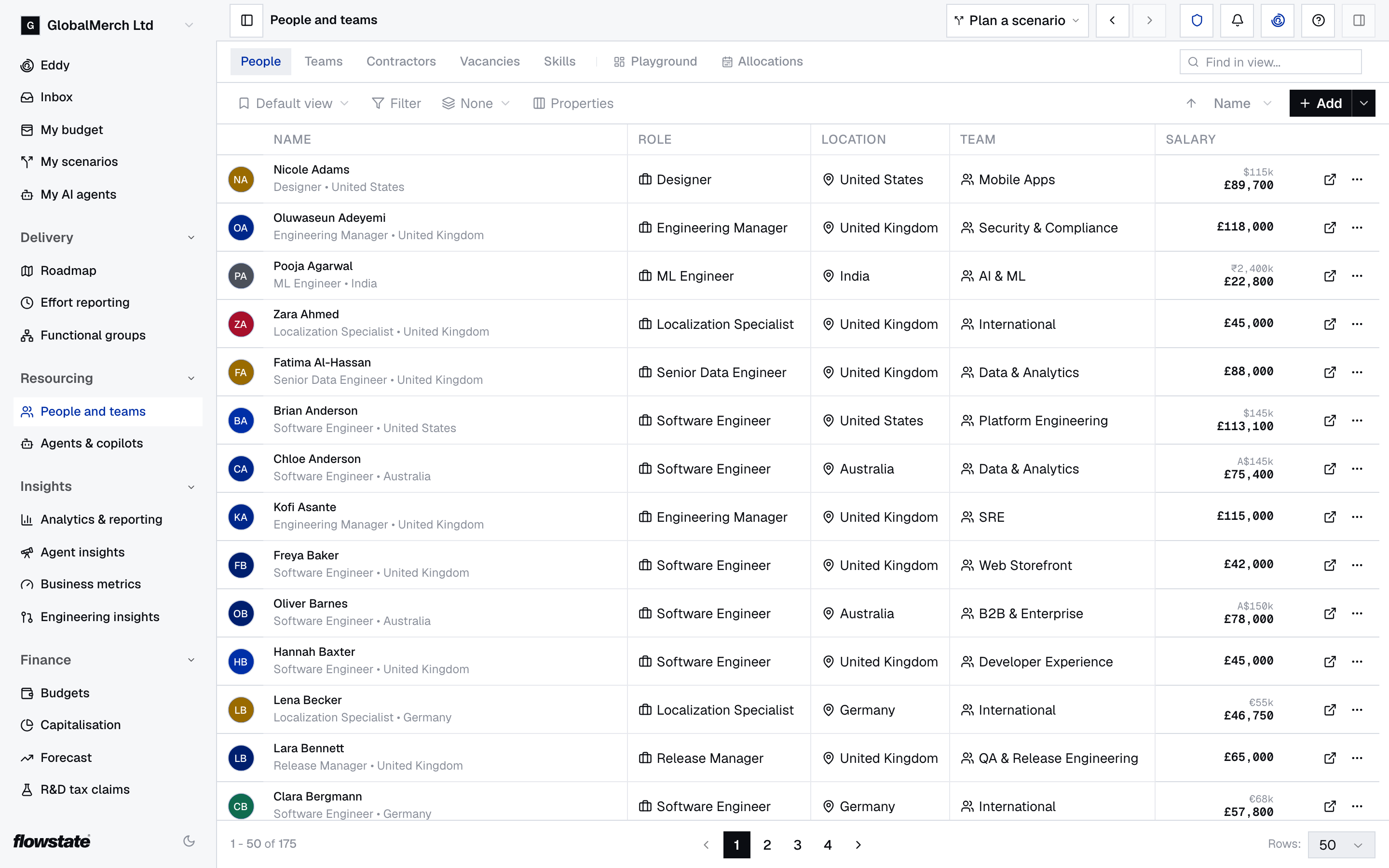
- Each row shows the person’s Role, Location, Team and Salary. You only see Salary if you have access to pay. Use Properties to show or hide columns, including a column for each custom attribute.
- Filter by Team, Location, Role, Skills, Line Manager, Status or Salary, or by your custom attributes, where Not set finds the people an attribute is empty for. For Salary, choose a comparison such as greater than, enter an amount in your reporting currency, and select Apply.
- Search with Find in view….
- Sort by Name, Salary or Start Date.
- Use Group by to list people by Team, Location or Role, or choose None.
Leavers are hidden. To see them, choose Filter → Status → Include off-boarded.
Inside a scenario, you can also group by Changed in Plan. People are then listed under Added in Plan, Modified in Plan, Deleted in Plan, Related Changes and Unchanged.
Change someone’s role, location or team from the list
On the People tab, you can change a person without opening their record.
- Role: select the Role cell and choose the new job role.
- Location: select the Location cell and choose the new location.
- Team: select the Team cell, choose the new team, and complete Change Team. See Move someone to another team.
A role or location change applies straight away.
Change someone’s salary
Salaries are dated. A change applies from its effective date, and earlier months keep the old salary.
- Open the person’s side panel and select Compensation.
- Under Salary, select Add change.
- In Add Salary Adjustment, enter the New Salary and choose its currency.
- Set the Effective Date.
- Optionally add a Reason, such as a promotion.
- Select Save Adjustment.
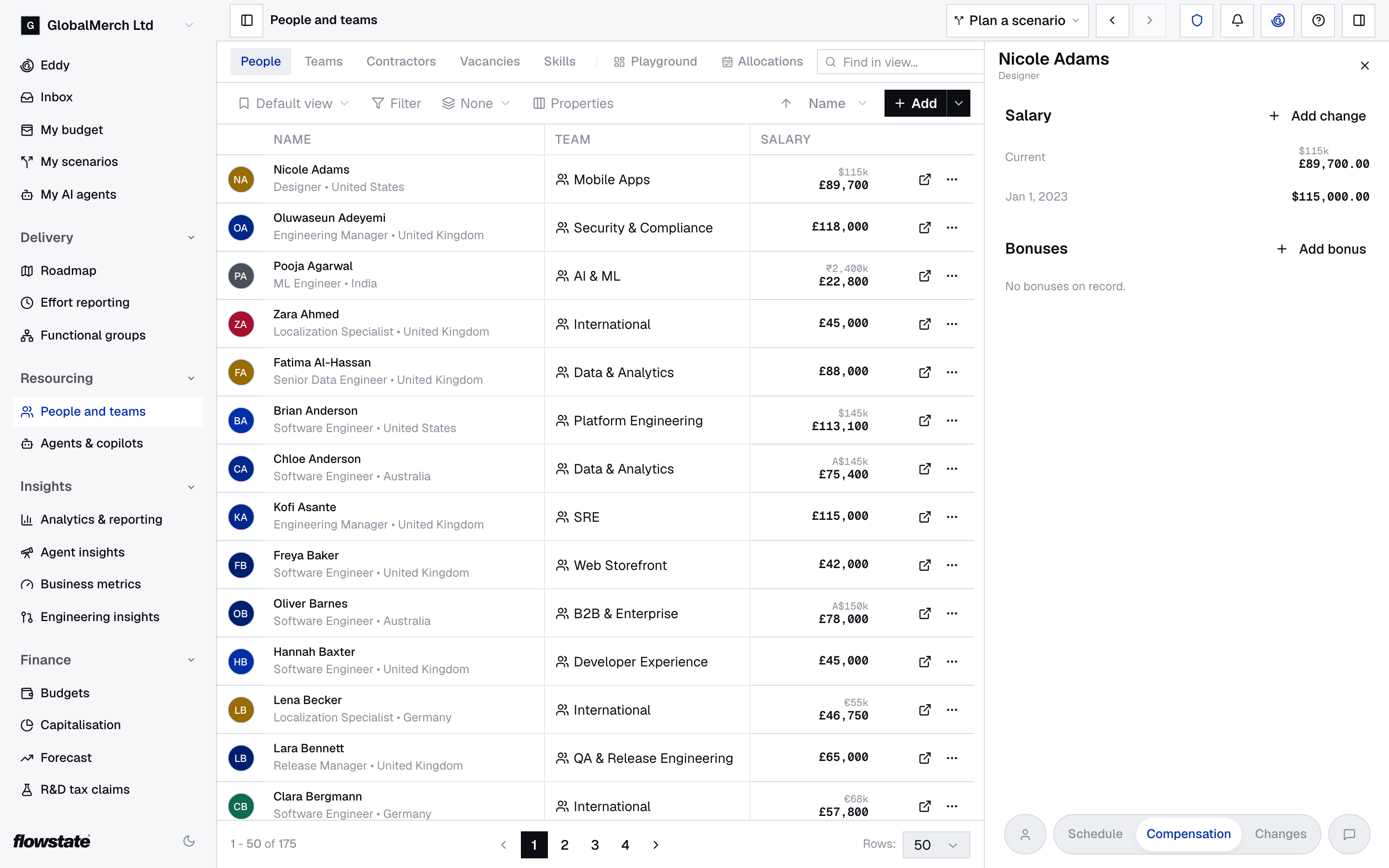
A future change shows as Scheduled until its date. Past changes are listed underneath, where you can edit or delete them.
Each salary can be in its own currency, so someone who moves country keeps their earlier history. Flowstate converts it to your reporting currency. See Exchange rates.
Give a group of people a pay rise
Use this for an annual pay review, or any change that applies to many people at once.
- On the People tab, filter to the people you want, for example by Team, Location or Role.
- Open the menu next to Add and select Adjust salary.
- In Bulk salary adjustment, check how many people match. It covers everyone who matches, not only the page you can see.
- Choose Set to amount and enter the New salary, or choose Percentage uplift and enter the Increase.
- Set Effective from.
- Optionally add a Reason.
- Select Adjust.
Everyone who matches gets a new dated salary, just as if you’d changed each one by hand. The message afterwards says how many were adjusted and how many were skipped.
Add a bonus
- Open the person’s side panel and select Compensation.
- Under Bonuses, select Add bonus.
- In Create Bonus, enter the Bonus Amount. It’s in the currency of their current salary.
- Set the Effective Date: the date the bonus is paid.
- Optionally add a Reason.
- Select Create Bonus.
The forecast adds the whole bonus to the month it’s paid. See Bonuses.
Change or delete a bonus
- Open the person’s side panel and select Compensation.
- Under Bonuses, hover over the bonus.
- To change it, select the pencil icon. In Edit Bonus, change the amount, date or reason, then select Update Bonus.
- To delete it, select the bin icon. The bonus is deleted straight away.
Move someone to another team
- Open the person’s side panel and select Current team, or right-click their row on the People tab and select Change team.
- Choose the new team.
- In Change Team, choose Move entirely to the target team, or Split time with the target team.
- If you’re splitting their time, enter the Full-time equivalent (FTE) they’ll spend on the new team.
- Set the Date of change.
- Select Confirm Movement.
Their time on the old team ends and their time on the new team starts on that date, so their cost moves to the new team from then.
You can also start a move from the Team cell on the People tab. Or, when the tab is grouped by Team, drag the person’s row into another team’s group. Either way, Change Team opens so you can set the details.
To move several people at once, use Playground. To try a reorganisation before it’s real, make the moves in a scenario.
Plan someone’s time on teams and projects
The Schedule tab on a person’s side panel shows which teams and projects they’re on, under Allocations, and their leave, under Leave.
If some of their time isn’t on a team, the side panel warns Incurring unallocated cost, and that time shows under No team in the forecast. More in Allocations.
If your organisation uses functional groups, the positions the person holds in them are listed under Functional groups, between Teams and Projects: the group, the position, their share of it as an FTE, and the dates. Positions they’re due to take up are included; ended ones are behind See historic. Select a row to open the position. To change a position or who holds it, see Positions.
Put someone on another team
- Open the person’s side panel and select Schedule.
- Under Teams, select Add.
- In Add Team, choose the team.
- In Change Team, choose Move entirely to the target team or Split time with the target team.
- Set the Date of change.
- If you’re splitting their time, enter the Full-time equivalent (FTE) on the new team.
- Select Confirm Movement.
From that date, their time on their other teams is ended, or reduced to make room. The new allocation has no end date. To add one, change the allocation.
Put someone on a project
- Open the person’s side panel and select Schedule.
- Under Projects, select Add.
- In Add Project Allocation, choose the project.
- In Assign to Project, enter the Full-time equivalent (FTE). 1.0 means all of their time.
- Set the Start Date and, optionally, the End Date.
- Select Confirm Allocation.
You don’t need to put people on projects for effort reporting. Flowstate estimates effort from the tools people already use. See How your team’s effort is estimated.
Change or end an allocation
Hover over the allocation’s row on the Schedule tab.
- To change its FTE or dates, select the pencil icon. In Edit Allocation, change the FTE (Full-time equivalent), Start Date or End Date, then select Save Changes.
- To end it today, select the bin icon, then End today.
- To delete it as if it never happened, select the bin icon, then Remove allocation.
Ended allocations are hidden. Select See historic to show them.
When you end a team allocation today, Flowstate asks What about the vacancy?:
- Open a new vacancy on {team} for the remainder of the budget adds a vacancy for the rest of the time they were due to be on the team. It’s only offered if that time had an end date.
- Just end the allocation ends it with no vacancy.
See Keep a position open when someone leaves it. Ending a team allocation today only works in live data. In a scenario, change its End Date instead.
To record leave, see Handle leave in effort reports.
Change someone’s start date
- Open the person’s side panel.
- On Overview, select Employment dates.
- Change the Start date.
- Select Apply.
The forecast costs them from the new date.
Record a leaver
- Open the person’s side panel.
- On Overview, select Employment dates.
- Set the End date to their last day.
- Select Apply.
- Flowstate asks Off-board with their name. It will end all their allocations on the same date.
- Select Confirm.
Flowstate stops costing them after their last day. They stay in past forecasts and effort for the time they worked.
Leavers are hidden from the People tab. To see them, turn on Include off-boarded in the filters.
Undo a leaver
Recording the leaver also ended their allocations. Clearing the end date doesn’t bring those back, so add their team and projects again on the Schedule tab.
If they’re leaving on a different day, you don’t need to undo anything. Set the new End date under Employment dates, select Apply, then Confirm. If the new day is later, their allocations still end on the old day, so change their end dates on the Schedule tab.
Delete an employee
Delete someone only if they were added by mistake. If they worked for you, record a leaver instead, so they stay in past forecasts and effort.
- On the People tab, right-click the person and select Delete.
- In Delete Employee?, type their name to confirm.
- Select Delete.
Deleting permanently removes the person and all their data. It can’t be undone.
What’s on an employee’s record
Select a person on the People tab to open their side panel.
| Tab | What’s on it |
|---|---|
| Overview | Employee details, Custom attributes and Skills. A Linked record appears if they were once a contractor |
| Schedule | Team and project allocations, and leave |
| Compensation | Current, scheduled and past salaries, and bonuses |
| Changes | Every change to the record, with who made it and when |
| Comments | Notes from your team, opened with the speech-bubble button |
Under Employee details, select a value to change it:
| Field | What it’s for |
|---|---|
| First name and Last name | Their name as it appears across Flowstate |
| Email address | Matching the person to your project tool, AI tools and spreadsheet imports |
| Role | Their job role, for filtering, grouping and analytics |
| Employment type | Their work type, which sets the overhead added to their cost. Your admin sets up work types in Organisation basics |
| Location | Where they work, for filtering, grouping and analytics. It doesn’t change what they cost |
| Current team | The team their cost belongs to in the forecast |
| Line manager | The employee they report to. This is different from a team’s manager, who is a Flowstate user |
| Current salary | Shown if you have access to pay |
| Employment dates | When they joined and, if they’re leaving, their last day |
| External ID | Your HR system’s ID for them, filled in by an import or integration |
How an employee’s cost is worked out, in the forecast and for the effort they report, is on How costs are calculated.
Fill in custom attributes
Custom attributes are extra fields your organisation adds, such as a grade. Your admin sets them up under Settings → Resourcing → Custom Attributes.
- Open the person’s side panel.
- On Overview, under Custom attributes, select the value next to the attribute. An empty one shows Not set.
- Enter or choose the new value.
- If Apply is shown, select it.
Add or remove skills
Skills help you find people for a project. See Skills.
- Open the person’s side panel.
- On Overview, under Skills, select Add Skill.
- Search in Search or create skill… and select the skill.
- If it isn’t in the list, select Create with the skill’s name. This adds the skill to your organisation’s list and to the person.
To remove a skill, select the cross on it.
Comment on someone’s record
- Open the person’s side panel and select the speech-bubble button to open Comments.
- Type your comment in Add a comment…. To mention someone, type @ and choose them.
- Select Post.
People you mention see it in their Inbox.
If something’s not right
A team costs more or less than payroll. Check each person’s salary history and Employment type, and that your exchange rates are set up. See How costs are calculated.
Someone’s cost shows under No team. Part of their time isn’t on a team. Add a team allocation on their Schedule tab.
Someone’s effort is missing from their team’s reports. They have effort but no team, so their effort doesn’t count towards team figures such as CapEx, R&D and weekly reports. Add them to a team on their Schedule tab, or use Assign to team… under No team in effort reporting.
Someone costs nothing. They have no salary. Add one on their Compensation tab.
Someone is costed twice. They also have a contractor record for the same dates. On their side panel, open Linked record and select End contractor on to end the contract on the suggested date.
Someone is missing from next year’s forecast. They have an end date. Only set end dates for known leavers or fixed-term contracts.
You set an end date by mistake. You can change it to another date, but you can’t remove it on screen yet. See Undo a leaver.
Someone is listed twice. This usually means an old email address created a second record. If one record was added by mistake, delete it. If both have history, don’t delete either. Contact Flowstate to merge them.
You can’t see salaries, or there’s no Add change button. Who can see and change pay depends on your role. Inside a scenario, anyone who can edit it can also see pay. In a team budget, its owner can see pay if their role lets them edit scenarios, and approvers see pay in the changes they review. Otherwise, ask your Flowstate admin.
Adjust salary is greyed out. Filter the People tab first. A pay rise needs at least one filter.
A leaver still shows up. Check they have an end date under Employment dates. Someone leaving in the future stays listed until their last day.
End today doesn’t work in a scenario. Ending a team allocation today only works in live data. In a scenario, select the pencil icon and set its End Date.
What about the vacancy? doesn’t offer a new vacancy. That option only appears if their time on the team had an end date.
For your technical team
- Employees, salary changes and allocations can be read and written through the REST API: Employees and Assignments.
- To undo a leaver, update the employee through the API with
endDateset tonull. Leaving the field out keeps the existing end date. - Spreadsheet columns for importing people are in People and teams.