Agents
Resourcing → Agents & copilots → Agents lists the AI agents working for your organisation. Add an agent when a team starts running one on real work, so it has an accountable owner and its spend is visible.
You need access to add and edit people to manage agents — ask your Flowstate admin.
Add an agent
- Open Resourcing → Agents & copilots → Agents and select Add agent.
- Choose what kind of agent it is:
- Provider agent — an off-the-shelf agent from a provider’s catalogue.
- Built workflow — a workflow you’ve built on a provider’s platform.
- Custom workflow — a bespoke workflow you build and run yourself.
- For a provider agent, choose the Provider. For a built workflow, choose the Platform.
- Enter a Name and a Purpose. A provider agent is named after the provider for you.
- Choose the Owner — the person accountable for what the agent does and spends.
- Select Save.
For a Custom workflow, step 6 is Create & issue SDK key. Select Copy to copy the key, then Done.
See what an agent spent
The Cost column shows what each agent spent in the period chosen in the toolbar.
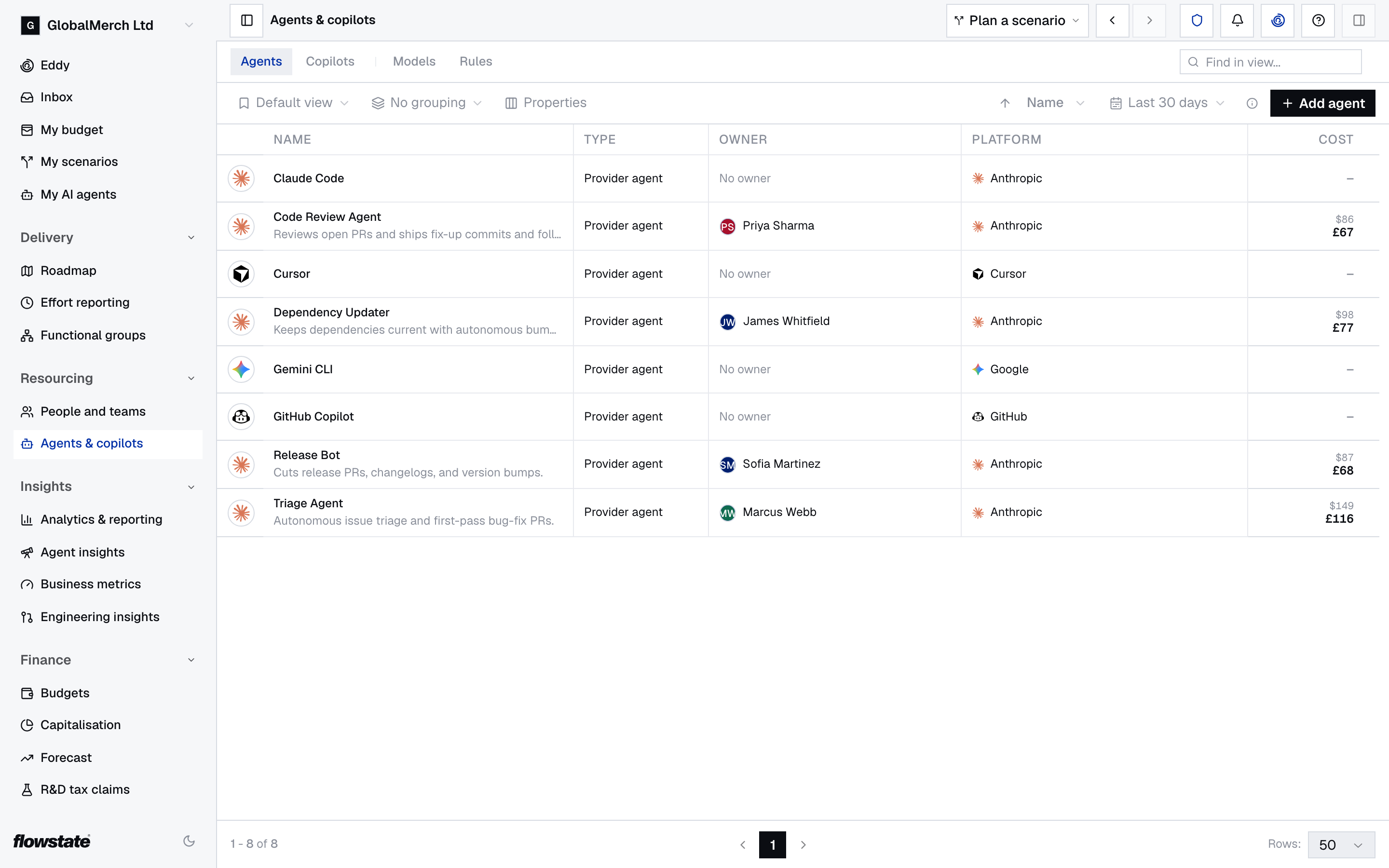
- — means no spend in that period.
- Awaiting price data means the agent’s model doesn’t have a price in the Models catalogue yet.
Use Group to list agents by Type or Owner.
Select an agent to open its record:
- Overview — its Realised spend for the last 30 days, and its details.
- Schedule — the projects it’s deployed on.
- Activity — the projects it worked on in the last 30 days, and any Unattributed work.
- Changes and Comments.
Put an agent on a project
- Open the project and go to its Resourcing plan tab.
- In the resource rail, choose Agents.
- Search the agent pool and drag the agent into the Agents section.
The agent now shows on the project, and on its own Schedule tab.
Edit or delete an agent
- Select the agent on the list.
- On Overview, select the Name or Purpose to change it.
- To remove the agent, select Delete agent and confirm.
Troubleshooting
“An agent needs an owner before it can be saved.” — Choose an Owner. The owner must be an employee in Flowstate.
“You need integration permissions to issue an SDK key. Ask an admin to create this agent.” — Ask your Flowstate admin to add the custom workflow for you.
“Could not create the agent. Please try again.” — A custom workflow can only be added in live data, not inside a scenario.